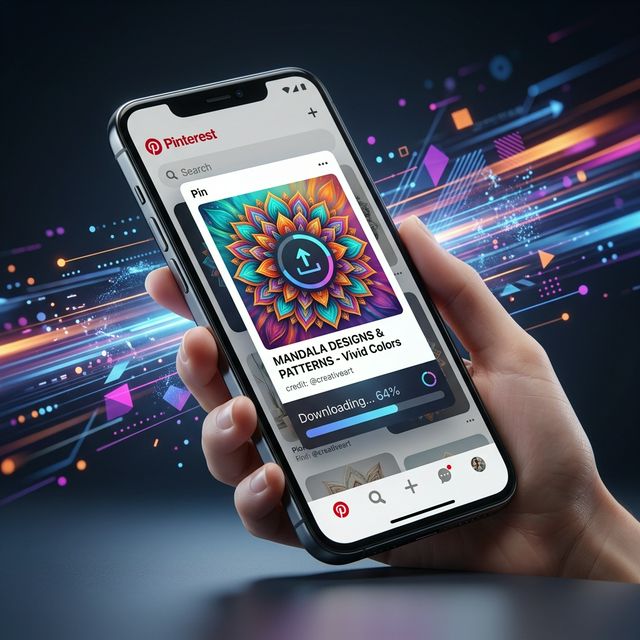
Pinterest is one of the best platforms for discovering creative ideas, DIY projects, recipes, fashion inspiration, and engaging videos. However, Pinterest does not provide a direct option to download most videos to your iPhone. As a result, many users search for ways to save Pinterest videos to their Camera Roll for offline viewing, sharing, or personal use.
The good news is that downloading Pinterest videos on iPhone is quick and easy. You do not need to install any third-party app or browser extension. With the right Pinterest video downloader, you can save videos in HD, Full HD, and even 4K quality directly to your device.
In this guide, you'll learn how to download Pinterest videos on iPhone running iOS 26 and older versions, save them to your Camera Roll, troubleshoot common issues, and discover the safest way to download Pinterest content.
Quick Answer: Download Pinterest Videos on iPhone in 30 Seconds
Follow these simple steps:
- Open Pinterest and find the video you want to download.
- Tap the Share button and select Copy Link.
- Open PinSaveVideos.com in Safari.
- Paste the Pinterest URL into the downloader box.
- Tap Download.
- Choose your preferred quality (HD, Full HD, or 4K).
- Save the file to your iPhone.
- Move the video to your Camera Roll if needed.
That's it. Your Pinterest video is now available for offline viewing.
Can You Download Pinterest Videos on iPhone?
Yes, you can download Pinterest videos on iPhone, but Pinterest does not provide a native download option for most video pins.
Instead, users typically rely on online Pinterest video downloader tools that extract the original video file from the Pinterest URL and allow it to be downloaded directly to the device.
This method works on:
- iPhone
- iPhone Pro
- iPhone Pro Max
- iPhone Mini
- iPad
- iPad Air
- iPad Pro
It also works across modern versions of iOS including iOS 26.
How to Download Pinterest Videos on iPhone Without an App
One of the biggest advantages of using an online Pinterest downloader is that you don't need to install any application.
Copy the Pinterest Video URL
Open the Pinterest app and locate the video you want to save.
Open PinSaveVideos.com
Launch Safari on your iPhone and visit PinSaveVideos.com.
Paste the Link
Paste the copied Pinterest URL into the download box.
Download the Video
Tap the Download button.
Save the Video to Camera Roll
After downloading:
- Tap the Share icon.
- Select Copy Link.
- The Pinterest URL will be copied to your clipboard.
Safari is recommended because it integrates directly with the iPhone download manager and Files app.
The tool will automatically process the video and generate download options.
Choose the quality you want:
- HD
- Full HD
- 1080P
- 4K (if available)
The video will begin downloading immediately.
- Open the Files app.
- Locate your downloaded video.
- Tap Share.
- Select Save Video.
The video will now appear in your Photos app and Camera Roll.
How to Download Pinterest Videos Using Safari
Safari is the best browser for downloading Pinterest videos on iPhone.
Benefits include:
- Faster downloads
- Built-in download manager
- Easy access to Files app
- Better compatibility with iOS 26
- Smooth Camera Roll integration
If Safari opens the video instead of downloading it, simply long-press the download button and choose Download Linked File.
How to Download Pinterest Videos to Camera Roll
Many users successfully download videos but cannot find them in Photos.
This happens because iPhone saves downloaded files to the Files app first.
To move the video to Camera Roll:
- Open Files.
- Navigate to Downloads.
- Select the Pinterest video.
- Tap Share.
- Choose Save Video.
The file will instantly appear inside the Photos app.
How to Download Pinterest Videos in HD, Full HD, and 4K
Many Pinterest users prefer downloading videos in the highest quality available. Whether you're saving tutorials, recipes, travel clips, or creative inspiration, HD quality ensures a better viewing experience.
With PinSaveVideos, you can download Pinterest videos in:
- HD Quality
- Full HD (1080P)
- 2K Resolution
- 4K Resolution (when available)
To get the highest quality:
- Copy the Pinterest video URL.
- Paste it into PinSaveVideos.
- Wait for processing.
- Select the highest available resolution.
- Download the file.
Keep in mind that not every Pinterest video is uploaded in 4K. If the original uploader only shared a 720P video, higher resolutions won't be available.
How to Download Pinterest Videos Without Watermark
One of the biggest frustrations users face is downloading videos with watermarks.
PinSaveVideos retrieves the original Pinterest video file whenever possible. This acts as a reliable Pinterest Video Downloader Without Watermark, helping you save clean videos easily.
Benefits include:
- Better viewing experience
- Cleaner social sharing
- Professional content organization
- Improved video quality
Simply paste the Pinterest URL and download the highest-quality version available.
Why Use PinSaveVideos?
There are hundreds of Pinterest video downloaders online, but not all of them are safe, fast, or reliable.
No App Installation Required
You don't need to install any application.
Everything works directly inside your browser.
This saves storage space and keeps your iPhone secure.
Fast Downloads
Most Pinterest videos are processed within seconds.
Simply paste the URL and download immediately.
Works on All iPhones
PinSaveVideos supports:
- iPhone 11
- iPhone 12
- iPhone 13
- iPhone 14
- iPhone 15
- iPhone 16
- Future iPhone models
Supports HD & 4K Downloads
Download videos in the best quality available.
Safe and Secure
No account registration required.
No login required.
No personal information requested.
Works Across Devices
Besides iPhone, PinSaveVideos also works on:
- How to Download Pinterest Videos on Android
- Windows PC
- MacBook
- iPad
- Linux Devices
Pinterest Video Downloader vs Screen Recording
Many users wonder whether screen recording is a better option than using a Pinterest downloader.
| Feature | Pinterest Downloader | Screen Recording |
|---|---|---|
| Original Quality | Yes | No |
| HD & 4K Support | Yes | Limited |
| Audio Quality | Original | Reduced |
| File Size | Optimized | Larger |
| Easy to Save | Yes | Yes |
| Fast Process | Yes | No |
For the best quality and fastest results, a Pinterest video downloader is the preferred method.
Common Problems and Fixes
Pinterest Video Not Downloading
Possible causes:
- Invalid Pinterest URL
- Temporary Pinterest server issue
- Poor internet connection
Solution:
- Copy the link again.
- Refresh the page.
- Retry after a few minutes.
Video Not Appearing in Photos
This is the most common issue on iPhone.
Downloaded files are usually stored inside the Files app first.
Move them manually to Photos by selecting Save Video.
Safari Opens the Video Instead of Downloading It
If Safari starts playing the video:
- Press and hold the download button.
- Select Download Linked File.
- Save the video manually.
Download Link Not Working
Try:
- Refreshing Safari
- Using a different Pinterest URL
- Updating iOS
- Clearing browser cache
Video Has No Sound
Check:
- Silent Mode switch
- Volume level
- Original Pinterest video audio
Some Pinterest videos are uploaded without sound by the creator.
Is Pinterest Video Downloader Safe?
Yes, using a Pinterest video downloader is generally safe.
To stay protected:
- Avoid suspicious apps.
- Never install unknown profiles.
- Do not provide login credentials.
- Use trusted downloader websites.
A safe downloader should allow downloads without requiring account access.
Frequently Asked Questions
Can I Download Pinterest Videos for Free?
Yes. Most Pinterest video downloaders allow free downloads without subscriptions.
Do I Need an App to Download Pinterest Videos?
No.
You can download Pinterest videos directly through Safari using an online downloader.
Can I Download Pinterest Videos on iPad?
Yes.
The process is identical to iPhone and works on all modern iPads.
Can I Download Multiple Pinterest Videos?
Yes.
Simply repeat the process for each Pinterest URL.
Does This Work on iOS 26?
Absolutely.
The method works on iOS 26 and older supported iOS versions.
Can I Download Pinterest GIFs?
Yes.
Many Pinterest downloaders support:
- Videos
- Pinterest GIF Downloader
- Pinterest Image Downloader
- Idea Pins
Will Downloading Videos Use Mobile Data?
Yes.
Downloaded files consume data based on their size and quality.
For large HD or 4K videos, Wi-Fi is recommended.
Can I Save Pinterest Videos Directly to Camera Roll?
Yes.
After downloading, simply use the Save Video option from the Files app.
Why Can't I Download Videos Directly From Pinterest?
Pinterest currently provides limited download functionality for videos, which is why users rely on third-party downloader tools.
Can I Download Pinterest Videos in 4K?
Yes, if the original video was uploaded in 4K quality.
Final Thoughts
Downloading Pinterest videos on iPhone is easier than ever. Whether you're using the latest iPhone running iOS 26 or an older device, you can save Pinterest videos in just a few taps without installing any app.
Simply copy the Pinterest video URL, paste it into PinSaveVideos, and download your preferred quality. You can then move the file to your Camera Roll and enjoy offline access whenever you need it.
If you're looking for a fast, secure, and free Pinterest video downloader for iPhone, PinSaveVideos provides one of the simplest ways to save Pinterest videos, GIFs, and images in HD quality directly to your device.